
Academic Programs
Career-focused degrees and certificates
UB prepares students for careers of the future, with over 80 in-demand programs and majors. We offer programs designed for today’s busy students including fully online, hybrid, accelerated, and continuing education and certificate programs.
Develop practical skills and make beneficial connections
Our arts and humanities programs include interdisciplinary and pre-professional preparation to meet the challenges of the 21st century.
Behavioral Science
Learn about the theories, researchers, and research findings related to how humans think and behave, and how we as a field try to describe, explain, predict, and influence human behavior and mental processes.
Practical education for a modern business career
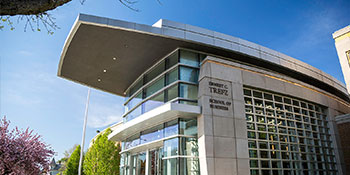
University of Bridgeport Ernest C. Trefz School of Business is where theory and practice come together for student success.
Dental Hygiene programs
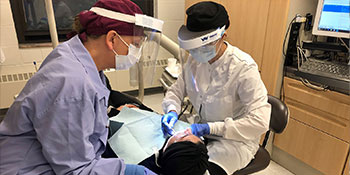
Established in 1949 and accredited since 1953, the Fones School of Dental Hygiene at University of Bridgeport is the first school of dental hygiene in CT — and the world. Graduates are eligible for national, regional, and state examinations.
Inspire and lead
University of Bridgeport’s School of Education is home to the first tuition-paid internship program in the country and trains more Connecticut teachers than any other school in the state. UB works closely with 60+ school districts in Connecticut and Westchester, NY.
Prepare for the careers of tomorrow
The School of Engineering of University of Bridgeport provides interdisciplinary, professional, comprehensive education, and research opportunities in engineering, sciences, and the application and management of technology.
Become an in-demand healthcare professional
The College of Health Sciences educates students to be leaders in integrative, evidence-based, patient-centered healthcare. To address the demand for highly qualified healthcare professionals, our health science school offers an exceptional set of undergraduate, graduate, and postgraduate healthcare programs that positively contribute to the advancement of healthcare delivery, both locally and globally.
ELI and Modern Languages
Discover the English Language Institute, our well-established intensive English as a Second Language program, as well as minors in modern languages.
Natural Sciences and Mathematics
Study the description, understanding and prediction of natural phenomena, based on empirical evidence from observation and experimentation.
Prepare for a lifelong career
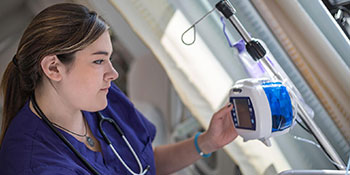
Nurses, by nature of their field, are leaders and lifelong learners. University of Bridgeport’s School of Nursing offers an exciting opportunity for all those beginning or continuing their nursing education.
Expand your skill set
University of Bridgeport offers a wide variety of seminars, continuing education, and certificate programs designed to help working professionals keep abreast of current concepts.
The best of both worlds
UB provides many advantages not usually available to junior college or two-year college students. Students receive all the individual guidance and advising of a small college, while completing their studies in the environment of a major university.
Prepare for a successful future
Explore a world of opportunity through our comprehensive academic offerings and a rich learning environment.
Advance your career
We expand your professional possibilities through involvement in research, exceptional career connections, and the very best resources available.
Achieve the next level of success
Our Doctoral degree programs take into consideration the needs of working professionals in terms of curriculum content, orientation, and program organization.
Prepare for a successful future
Your educational journey continues here! With a variety of programs to choose from, we have what you need to pursue a fulfilling and rewarding future. You are our focus, and your success is our top priority.
Advance your career
At UB, all of our graduate programs are designed to help you achieve the next level of success.
Postgraduate education
University of Bridgeport offers a wide variety of seminars, online education, and distance learning programs designed to help working professionals keep abreast of current concepts and advances in professional training.
College of Science and Society
The College of Science and Society at University of Bridgeport is home to academic degree programs in humanities, fine arts, mathematics, natural science, behavioral science, applied science and modern languages.
College of Engineering, Business, and Education
The College of Engineering, Business, and Education of University of Bridgeport provides comprehensive professional, education, and research opportunities to a dynamic community in engineering, sciences, technology, computing, business, management, entrepreneurship, finance, analytics, accounting, education, teacher preparation, and educational administration.
College of Health Sciences
The College of Health Sciences educates students to be leaders in integrative, evidence-based, patient-centered healthcare. To address the demand for highly qualified healthcare professionals, our health science school offers an exceptional set of undergraduate, graduate, and postgraduate healthcare programs that positively contribute to the advancement of healthcare delivery, both locally and globally.
Join UB’s community of online learners
We are proud of our rich history and tradition in online learning. With a commitment to student success, we offer programs designed for today’s busy student including undergraduate, graduate and doctoral degree programs in a number of disciplines.
Maximum flexibility
Our distinct hybrid programs offer you an expedited and convenient way of pursuing your degree.
Join the UB community
University of Bridgeport’s main campus is situated on a gorgeous stretch of Long Island Sound, providing an ideal setting for scholarly pursuits and extracurricular involvement. With more than 50 active student clubs and organizations, it’s hard not to be involved on campus.
Fast-track your career
Our accelerated programs help students build upon their current education, work experience and life accomplishments to complete their educational goals.

Undecided
- UB will help you plan your future
- Choose your focus
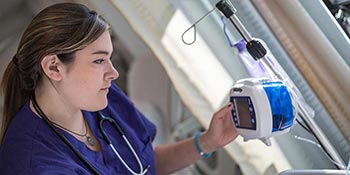
Accelerated BSN
Bachelor’s degree
- Become an RN in as few as 15 months
- Hands-on skill building in nursing skills and sim lab

Accounting
Bachelor’s degree
- Measure, analyze, and interpret economic data
- Many potential careers with competitive starting salaries

Acupuncture
Master’s degree
- State-of-the-art clinical training facilities
- Complete in a part- or full-time format

Analytics and Systems
Master’s degree
- Turn complex data into actionable insight
- Build skills computing data for IT and business
- On-campus and online class options

Artificial Intelligence
Master’s degree
- Business intelligence, data analytics, customer behavior prediction, robotics and more
- Four areas of specialization

Biology
Bachelor’s degree
- Build skills designing and executing experiments and analyzing data
- Prepare for pre-med programs or careers in agriculture, education, genetics, zoology, and more
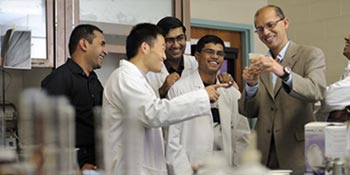
Biomedical Engineering
Master’s degree
- Learn how living things function
- Four concentrations

BSN
Bachelor’s degree
- State-of-the-art nursing skills and simulation lab
- Clinical opportunities at local hospitals, schools, and medical offices

Business Administration
Associate degree, Bachelor’s degree, MBA degree
- Become a problem-solver in a dynamic global business environment
- Small class sizes
- On-campus and online class options

Chinese Medicine
Master’s degrees, Doctoral degree
- Create an academic plan accommodating personal needs and goals
- Comprehensive training in Chinese herbal medicine and acupuncture
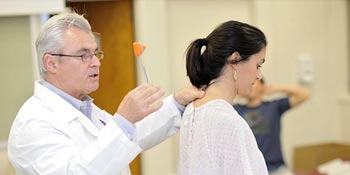
Chiropractic
Doctoral degree, Postgraduate programs
- Promote wellness for your patients
- Many local practice employment opportunities

Computer Science & Engineering
Bachelor’s degrees, Master’s degrees, Doctoral degree
- Apply mathematical foundations and algorithmic principles
- Model and design computer-based systems
- On-campus and online class options

Counseling
Master’s degree
- Inspire personal and intellectual growth
- Complete in a part- or full-time format
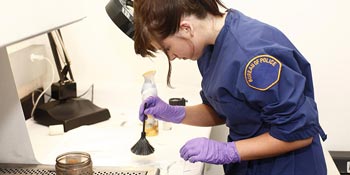
Criminal Justice
Bachelor’s degrees, Master’s degree
- Three areas of concentration
- Explore public safety on domestic and international levels
Data Analytics
Bachelor’s degree
- Develop analytical and critical thinking skills
- Many potential careers with competitive starting salaries

Dental Hygiene
Associate degree, Bachelor’s degree, Master’s degree, Postgraduate programs
- Develop the skills to provide comprehensive care
- State-of-the-art dental hygiene clinic

Education Sixth-Year programs
Teacher certifications, Sixth-Year Diplomas of Advanced Studies (DAS)
- Sixth-Year Diplomas of Advanced Studies leading to state certification

Educational Leadership Ed.D.
Doctoral degree
- Specialization in International Education
- Take courses online with 2 one-week in-person summer residencies
- Hybrid class options

Education master’s programs
Master’s degrees
- Tuition-paid internship opportunities
- Online, on-campus, and hybrid classes

Education minor
Combine with a bachelor’s degree
- A seamless pathway into teacher preparation programs
- Prepare to meet teacher certification prerequisites as an undergraduate

Electrical Engineering
Bachelor’s degree, Master’s degree
- Accelerated program available
- Develop your own concentration

ELI & Modern Languages
Minors
- Experienced teachers with advanced degrees
- Minor in Modern languages: Arabic, Chinese, French, Japanese, Korean, Russian, and Spanish

English and Professional Writing
Bachelor’s degree
- Learn in-demand communication skills
- Prepare for a great career in copywriting or content creation

Finance
Bachelor’s degree, Master’s degree
- Develop knowledge of financial management
- Explore corporate finance, banking, and investments

General Studies
Associate degree, Bachelor’s degree
- Six concentrations
- On-campus, online, and accelerated class options
Health Sciences
Bachelor’s degree, Doctoral degree
- BS program with four concentrations
- Online DHSc program with three concentrations
Health Sciences postgraduate programs
Continuing Education programs
- Clinical training in a variety of fields
- Conferences, workshops and CE courses

Human Services
Bachelor’s degree, Associate degree
- Build essential skills for service-oriented careers
- Online, on-campus, and accelerated classes

Marketing
Bachelor’s degree
- Offered as a BS degree
- Potential careers offer competitive starting salaries

Mathematics
Bachelor’s degrees, Minor in Education
- Offered as a BA or BS degree
- Develop quantitative and analytical skills

Mechanical Engineering
Bachelor’s degree, Master’s degree
- Specialize in a technical area of interest
- Cutting-edge tools and laboratories

Medical Billing and Coding
Certificate
- Fully online, asynchronous
- 9 month completion time

Medical Sciences
Master’s degree
- Complete in a part- or full-time format
- Boost your academic profile in a dynamic learning environment

Music
Bachelor’s degree (BM), Music Education (MS)
- Experienced, talented, and dedicated faculty
- Three concentrations to choose from within the BM program
Nursing
Associate degree, Bachelor’s degrees, Master’s degree
- State-of-the-art nursing skills and simulation center
- Clinical site opportunities at local hospitals, schools, and medical offices
- Traditional, online, and accelerated options

Nursing RN
Associate degree
- Part-time classes two evenings per week
- Six start dates a year

Nursing MSN
Master’s degree
- Can be completed fully online
- Dual focus on leadership and education

Nutrition
Master’s degree
- Can be completed fully online
- Engage in a unique Virtual Clinic capstone course

Physician Assistant
Master’s degree
- Dual emphasis on global health and preventative medicine
- Experienced faculty and small class sizes

Pre-Nursing
General education courses required for Nursing majors
- Develop skills needed to enter the nursing program

Psychology
Bachelor’s degree
- Offered on-campus or online
- Accelerated option available

Public Health
Master’s degree
- Available fully online
- Six start dates a year
- Scholarships available for those who qualify
RN to BSN
Bachelor’s degree
- Available fully online, asynchronous
- 90 transfer credits allowed from accredited institutions
- Six start dates per year

Sport Management
Bachelor’s degree
- Focus on ethics, finance, event management, and psychology
- eSports concentration provides a foundation in business management with a focus in the technology, marketing and production of eSports

STEM Master of Business Administration (MBA)
Master’s degree
- Develop STEM-focused insights for business administration
- Qualify for a 24-month STEM OPT extension

Technology Management
Master’s degree, Doctoral degree
- Identify and evaluate the impact of rapidly changing technology
- Eight concentrations
Your future starts today!
- Apply online!
- Financial aid is available, and we accept applications on a rolling basis
- We have comprehensive support services that will get you through college and into a great career